


TV Remote Control for Smart TV
4.569.00 Reviews
App Specs
- Version
- 1.1.3
- Updated On
- License
- Free
- Downloads
- 500,000+
- Developer
- iKame Applications - Begamob Global
- Categories
- Tools
- Platform
- Android
Screenshots
 Analysis by AppCompare
I tried TV Remote Control for Smart TV with one practical question in mind: can it make the ordinary act of finding and controlling a television easier without turning a simple remote into another complicated setup project? It is a free tools app from iKame Applications - Begamob Global, designed for controlling TVs and offering a touchpad-style way to interact with compatible devices. That sounds straightforward, and in daily use the appeal is easy to understand: one phone can replace the remote that disappeared between the sofa cushions.
My experience is that this app makes the most sense for people who want a convenient backup remote rather than a complete replacement for every physical controller in the home. The basic idea is familiar, but the useful details are in how you use it, what you expect from it, and how carefully you handle permissions and device access. I would recommend approaching it as a practical utility, not as a magical solution for every television.
What the app is really useful for
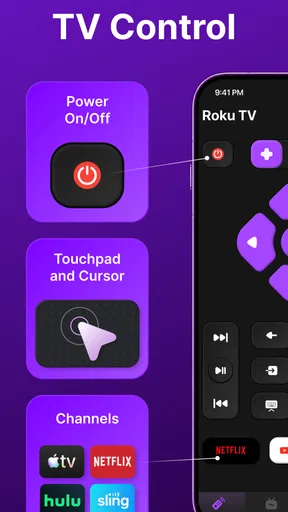
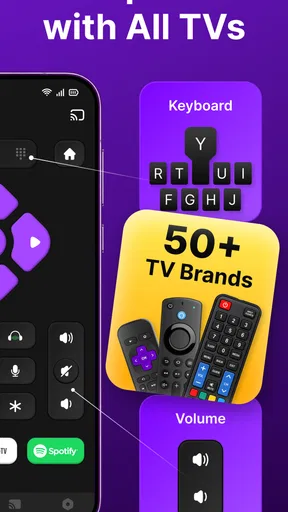
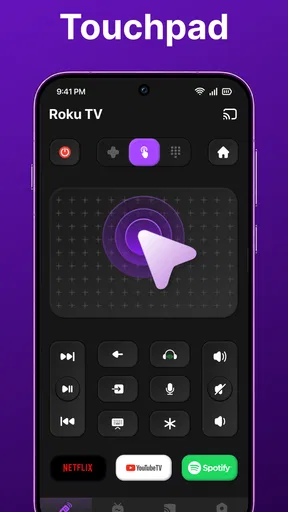
TV Remote Control belongs to the tools category, but it is more specific than a general household utility. Its purpose is to put television controls on a phone, including volume adjustment and a touchpad for supported devices. That combination matters because a phone can be easier to locate than a small remote, especially when several people share a living room or when the original controller has stopped working.
The app is free to download, with optional purchases ranging from $3.99 to $59.99 per item. That pricing detail is worth keeping in mind before treating it as a completely cost-free replacement. I would begin with the free experience and only consider an optional purchase after checking whether the connection works reliably with your television and whether the extra value is relevant to the way you watch.
The age rating is Everyone, which fits the simple nature of the tool. There is no reason a family member who only needs volume and navigation should find the concept difficult. Still, a friendly age rating does not automatically mean that setup is effortless. The phone, television, and home network need to cooperate, and that is where most of the real-world friction appears.
The app has a 4.5 average from around 6.1 thousand ratings, and it has passed 500 thousand installs. Those figures suggest that the concept has attracted a substantial audience, but they should not be read as a guarantee that every television will behave identically. Remote-control apps depend heavily on the television model, its network state, and the phone being used.
Starting with the right expectations
I would not install this expecting it to reproduce every button from a manufacturer’s original remote. A phone interface is usually better at the controls people use most often: power, volume, navigation, and selecting content. It is less naturally suited to obscure buttons, quick repeated commands, or the tactile certainty of a physical controller.
Worth Reading Before You Choose

EA SPORTS FC Mobile 26 Is a Bigger Football Game, but It Takes Time

Flipboard Shows What News Apps Must Do Beyond the Feed

Switching to Android Auto Means Rethinking Your Driving Routine

Google Calendar Makes a Crowded Week Easier to Manage

Ludo King Makes the Most of the Minutes Between Plans

Baby Panda World Brings Quick Play to Modern Phones, but Its Game Library Feels Busy
The touchpad is potentially the most useful part for devices that support pointer-like navigation. Moving around menus with a finger can feel more natural than repeatedly tapping directional buttons, particularly when browsing an on-screen keyboard or scrolling through a long menu. The trade-off is that a glass screen provides no physical feedback, so I sometimes need to look down at the phone instead of keeping my eyes on the television.
A realistic example is a shared living room where the original remote is in another room and someone wants to lower the volume during a phone call. Opening the app, connecting to the television, and using the volume control can be faster than searching through cushions. Another example is a guest room where the remote has been misplaced. In both situations, the app is valuable because it solves a small but immediate problem.
Connection habits that make a difference
The first useful habit is to make sure the phone and television are ready before blaming the app. I would check that both devices are connected to the same home network, that the television is awake enough to receive commands, and that the selected device is actually the one I want to control. A remote app cannot compensate for a television that is offline or isolated from the phone.
The second habit is to avoid testing it for the first time during an important match or movie. Set it up when there is no pressure, then try power, volume, navigation, and the touchpad separately. This tells you whether the app is suitable as a dependable backup or merely useful for occasional commands.
The third is to keep the phone unlocked and reasonably close to hand when using the touchpad. A physical remote can remain on the armrest, while a phone may be moved, locked, or picked up for another task. That difference sounds minor, but it changes the rhythm of use. I found the app most convenient when I was already holding the phone, not when I had to fetch it specifically.
Trust, permissions, and control over the experience
I approach permissions as part of the connection, not as paperwork to rush through: I read each prompt and decide whether it makes sense for controlling a television. I also keep optional purchases separate from basic testing, so I can judge the app on its everyday usefulness before deciding whether anything extra is worth paying for.
What I look for before connecting a television
With any remote app, I pay attention to the moment it asks to find or interact with devices. That is the point where a simple utility gains access to the local environment. I do not assume that an app is unsafe merely because it needs device discovery for its main function, but I do want the request to make sense and to be visible to me.
My approach is simple: read each system prompt, grant only what is needed for the intended connection, and avoid approving unrelated access just to get through setup quickly. If Android presents a permission that does not appear connected to controlling a television, I would pause and review it rather than accepting automatically. The app’s purpose gives me a reason to expect device-related access, not a reason to ignore every prompt.
I also prefer testing the app on a home network where I understand which devices are present. A workplace, hotel, or shared public network is a poor place to experiment with a local remote-control tool. Even when the app behaves as intended, a controlled environment makes it easier to recognize the television and avoid selecting the wrong device.
Data-sensitive moments during everyday use
The most sensitive moments are not necessarily the button presses. They are installation, permission requests, device discovery, optional purchase screens, and any point where the app asks me to make a choice before continuing. I treat those moments as part of the product experience, not as small obstacles to click past.
Because the app is free with optional purchases, I would be especially careful around upgrade prompts. A useful remote should be judged first by whether it connects and performs its basic job. I would not pay simply because a prompt appears during setup. Instead, I would identify which function is being offered, decide whether I actually need it, and confirm the purchase deliberately.
I also keep an eye on account controls and system settings. If an app offers a sign-in step, I would want to know why that step is necessary for a local remote before creating an account. If I later stop using the app, I would remove its device access through the phone’s settings where appropriate and uninstall it rather than leaving an unused tool in place. That is a sensible routine for any utility that interacts with connected electronics.
The most trustworthy way to use a remote app is to keep every access decision intentional. I do not grant permissions in bulk, and I do not treat a convenient television shortcut as a reason to overlook privacy choices. This does not make the app difficult to use; it simply keeps the user in charge of the connection.
Where the app fits beside the usual alternatives
The obvious alternative is the television manufacturer’s own remote app. That option may be preferable if you already use the brand’s connected services, need deeper television settings, or want an interface designed specifically for one model family. A manufacturer app can also be the better choice when you need features beyond basic control and navigation.
The physical remote remains the strongest option for speed and tactile feedback. I can change the volume without looking, press a button repeatedly, and continue watching the screen. TV Remote Control wins when the physical remote is missing, damaged, or shared between rooms. It loses when instant response and muscle memory matter more than convenience.
A universal remote accessory is another alternative. It may cost more initially, but it can control several household devices and usually offers physical buttons. I would choose that route for a living room with a television, sound system, and streaming box that all need regular control. I would choose this app for a lighter situation where the television is the main device and carrying another piece of hardware feels unnecessary.
Who should use it and who should skip it
I think the app is a good match for someone who often misplaces a remote, wants a backup on a phone, or prefers touch navigation for supported devices. It is also useful for households where different people need access to the same television without passing one physical remote around.
I would be more cautious about recommending it to someone who expects guaranteed compatibility with an older or unusual television, needs control of multiple home-theater components, or dislikes looking at a screen while changing channels and volume. It is also not the right first choice for a person who is uncomfortable reviewing permissions, network connections, or purchase prompts.
Another trade-off appears in family use. A phone-based remote is convenient, but it can become unavailable when its owner leaves the room, receives a call, or has a low battery. For that reason, I would keep the original remote or another dependable controller nearby instead of treating the app as the only way to operate the television.
Small workflow improvements I would actually use
I would place the app somewhere easy to reach rather than burying it in a large tools folder. The benefit of a backup remote disappears if finding the app takes longer than finding the physical controller. I would also test the volume controls before relying on the touchpad, because volume is usually the quickest measure of whether the connection is behaving properly.
For shared households, I would agree on one phone as the dependable backup rather than having everyone connect at once. That reduces confusion about which device is currently controlling the television. If several phones are used, I would label the television clearly in the app whenever the interface allows device selection, and I would disconnect unused sessions when finished.
For guests, I would avoid handing over a phone with broad access to unrelated apps. A spare device with only the necessary remote setup is a cleaner arrangement. This is not a special feature of TV Remote Control; it is a practical way to separate television convenience from personal messages, photos, and accounts.
How the current release feels
The current version is 1.1.2, and the app was released on March 17, 2026. I would treat it as a relatively recent utility and keep an eye on update behavior, especially if a television connection changes after an operating-system update. Remote apps sit between two platforms, so compatibility can shift even when the basic idea remains unchanged.
The minimum operating-system requirement is Android 7.0. That makes the app accessible to a broad range of Android phones, although compatibility with the phone itself is only one part of the equation. The television and network still determine whether the remote experience is smooth. A phone meeting the minimum requirement does not ensure that every connected-TV feature will be available.
When I evaluate a release like this, I care less about a long feature list than about predictable behavior. Can I find the intended television, adjust the volume, navigate without accidental taps, and exit without leaving confusing connections behind? Those are the practical tests that matter more than decorative interface details.
My balanced verdict
TV Remote Control is a sensible free tool for a specific problem: controlling a compatible television when a phone is more available than the original remote. Its volume control and touchpad approach make it more useful than a simple row of virtual buttons, particularly for menu browsing. The app has also attracted a healthy user base, which makes it worth considering as a backup.
My recommendation comes with boundaries. I would not replace a reliable physical remote solely for this app, and I would not choose it over a manufacturer-specific solution when deeper television integration is important. I would also review permissions, network access, and optional purchases carefully instead of assuming that convenience removes the need for user judgment.
For me, the best use is practical and modest: install it before the remote goes missing, test it during a quiet moment, and keep it available for those small household emergencies. If it connects cleanly to your television and you are comfortable with the access choices it presents, it can be a handy addition to your phone. If you need multi-device control, tactile buttons, or guaranteed model-specific support, a physical universal remote or the television maker’s own app is likely the better fit.
In short, I see this as a useful backup rather than a universal answer. Its value depends on compatibility and on how deliberately you use it. That honest limitation is also what makes the app easier to recommend: it does one everyday job, and it is most successful when you expect it to be a convenient remote, not a replacement for every control method in the home.
Pros
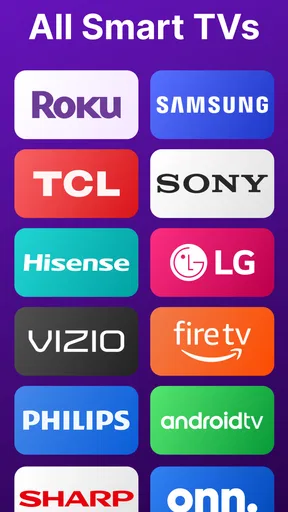
- Works with many popular Smart TV brands and models.
- Simple interface makes basic controls easy to find.
- Useful replacement when the physical remote is missing.
- Connects quickly when the phone and TV share Wi-Fi.
- Includes convenient volume
- channel
- and navigation controls.
Cons
- Requires a compatible Smart TV and a stable Wi-Fi connection.
- Some features may be limited to certain TV brands.
- Free version may include frequent advertisements.
- Initial pairing can be confusing on some network setups.
- Phone battery may drain faster during extended use.
FAQs for TV Remote Control for Smart TV
What is TV Remote Control for Smart TV, and how does it work?
TV Remote Control for Smart TV is a mobile application that turns an Android or iOS device into a remote control for compatible televisions. After installing it, you generally connect the phone and TV to the same Wi-Fi network, select the television from the available devices, and use the on-screen buttons for navigation, volume, channels, playback, and other supported functions.
Which televisions are compatible with TV Remote Control for Smart TV?
Compatibility depends on the specific version of the application and the television brand or operating system. It commonly supports popular Smart TV platforms, but not every model works in exactly the same way. Before downloading, check the app listing for the current compatibility information and confirm that your TV supports network-based remote control features.
Does my phone and Smart TV need to use the same Wi-Fi network?
In most cases, yes. The phone and television usually need to be connected to the same local Wi-Fi network so the application can discover and communicate with the TV. If the devices are on separate networks, guest Wi-Fi, or a mobile-data connection, pairing may fail. Restarting both devices and checking router permissions can often resolve connection problems.
Can TV Remote Control for Smart TV replace the original physical remote?
The application can replace many everyday remote-control functions, including changing channels, adjusting volume, opening menus, navigating Smart TV interfaces, and controlling supported media playback. However, some advanced buttons or brand-specific features may not be available. It is also less convenient when the phone is unavailable, out of battery, or unable to connect to the network.
Is TV Remote Control for Smart TV free and safe to use?
The application may be available as a free download, although certain features can include advertisements, optional purchases, or subscription requirements depending on the version and platform. Users should review the app-store listing, permissions, privacy policy, and developer information before installing it. Network access is normally required, while unnecessary permissions should be treated carefully.


